Working with USD in Blender 5.2: Import and Export Scenes Like a Studio

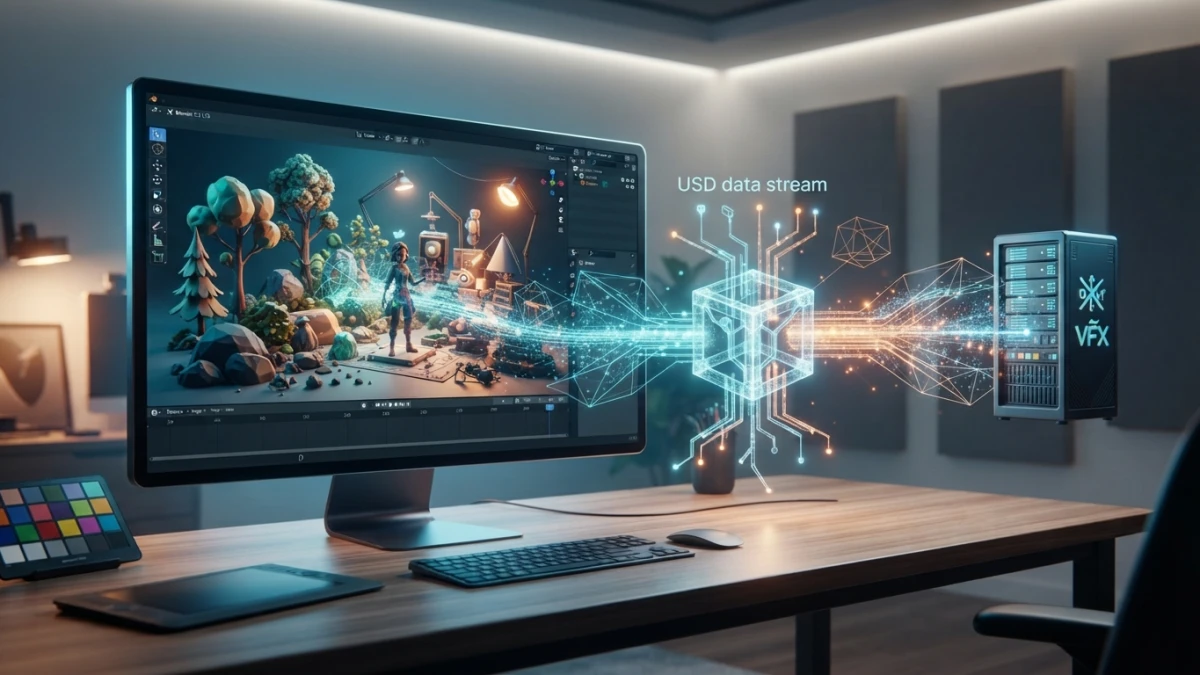
USD is not just another mesh format: it is the open 3D scene standard created by Pixar, used by VFX, game, and AR/VR pipelines, and Blender 5.2 LTS imports and exports it out of the box. Know what the importer converts and which limitations to avoid before sharing your scene.
What USD Is and Why It Matters in 2026
Universal Scene Description (USD) started at Pixar as an open-source framework for describing, composing, and exchanging complete 3D scenes. Unlike OBJ or FBX, which mostly store geometry and transforms, USD describes the scene as a whole: meshes, materials, lights, cameras, and hierarchies, organized into prims that can be composed with each other. That is why it became the standard interchange format in animation studios, VFX pipelines, and tools like NVIDIA Omniverse.
A Scene Format, Not Just a Mesh
When you send an OBJ, you send triangles. When you send USD, you send a scene with structure: every element is a prim with properties, and those prims are organized into hierarchies that another application can read and modify without losing context. That makes collaboration between tools and artists possible, because each person can work on a different layer of the same scene.
usda, usdc, usd, and usdz: The File Formats
USD ships in four variants worth keeping straight. .usda is human-readable text, useful for reviewing diffs in a repository. .usdc is binary and faster to read and write. .usd is the default extension and can hold text or binary, depending on what the writer chooses. And .usdz is a packaged archive, designed to distribute a complete asset in a single file, and it is the usual format for AR and Quick Look on iOS.
Composition: Layers, Variants, References, and Payloads
The big idea in USD is composition: instead of duplicating data, one file can reference others, stack override layers, and define variants. A studio can keep geometry in one file and the lighting of each shot in separate layers without copying the mesh. That is what makes enormous scenes scalable, but it is also the most complex part of the format and the one with the least support in tools that are not full composition engines.
What Blender 5.2 Supports When Importing USD
Blender 5.2 LTS, released on July 14, 2026, with support until July 2028, includes production-ready USD import and export. The importer opens from File, Import, Universal Scene Description, and converts the prims in the file into a hierarchy of Blender objects.
From Prims to Objects: Geometry, Lights, Cameras, and Hierarchies
The importer understands the most common prim types: meshes, lights, cameras, and transforms become native Blender objects with their transforms respected. If the USD file has a prim hierarchy, you will see it reflected as an object hierarchy in the Outliner, so the scene arrives with structure instead of a soup of meshes.
Current Limitations: Layers and References
Here is the important nuance: Blender's importer, like its exporter, still does not handle certain USD composition concepts, specifically layers and references. If the file you receive depends on external references or stacked layers, you will likely see resolved or partially empty prims, because Blender does not run that composition. In practice, simple scenes with geometry, lights, and cameras flow very well; for layer-composed files, ask the sender for a flattened version.
Exporting a Scene to USD from Blender
Exporting is just as direct: File, Export, Universal Scene Description. The exporter walks the objects in the scene and produces a USD hierarchy suitable for the destination.
The Exporter Step by Step and Its Options
Select the objects you want to send, or leave the selection empty to export the whole visible scene. The exporter's options panel lets you choose the output format (.usda, .usdc, or .usd), whether to include only the selection or only visible objects, and other preferences depending on the version. In general, the safe option is exporting visible objects and then checking that transforms arrived with the expected scale and rotation.
What Gets Exported: Visible Objects and Selection
The exporter iterates over the scene's objects and converts each one into prims, respecting parent-child hierarchy. If you export only the selection, everything outside it does not travel, which is handy when you need to send a specific asset instead of the whole scene. Materials and textures are exported according to the format's support, so review the result in the target tool before calling the workflow done.
Exporting USDZ for AR and Quick Look
If the destination is AR, the usual format is .usdz. Blender first generates the .usd (or .usdc) file and then converts it to .usdz, the package that distributes the complete asset. That file can be previewed in iOS Quick Look or uploaded to AR platforms with no extra steps.
Practical Workflow: Blender to Another Tool
The most common case is sending a Blender scene to another 3D application, a game engine, or an asset validation tool. The flow is: prepare the scene in Blender with clean names and hierarchy, export to USD, and import in the target tool, checking lights, cameras, and scale.
Example: Sending a Scene to Another 3D Application
Imagine you model a product in Blender and the marketing team needs it in another 3D package for the catalog. With USD you export the full scene: geometry, materials, lights, and camera in a single file. The destination team imports the .usd and finds the scene assembled, with the object hierarchy intact, instead of having to reassemble loose meshes.
MaterialX and Textures: What Travels with the Asset
The OpenUSD ecosystem includes MaterialX read support, the open standard for material definition, through plugins. That means materials defined with MaterialX can travel with the asset and be interpreted by other tools that support the standard. Textures travel as file references or packaged inside the .usdz, so confirm that image paths resolve in the target tool.
Tips to Keep Your Pipeline Intact
Clean Names and Hierarchies
USD respects prim names, and a name with spaces or odd characters becomes a headache downstream. Use names without spaces, logical hierarchies, and avoid duplicated objects with autogenerated names if the destination will read them programmatically.
Consistent Units and Scale
Blender works in meters by default, but other tools use centimeters or their own units. Before exporting, set your scene scale and check how the destination interprets it. A scene with the wrong scale can arrive 100 times bigger or smaller without anyone noticing until the final render.
Avoid Layers and References When Blender Is the Destination
Since Blender does not compose layers or references, when Blender is the destination you should send a flattened file, without depending on external files or stacked overrides. If you receive a USD with layers, ask for the resolved version, or import only the prims you need and rebuild what is missing.
Conclusion
USD is here to stay as the common language of 3D scenes between tools, and Blender 5.2 LTS speaks it natively: it imports prims as objects, exports complete scenes, and generates USDZ for AR. The key is knowing its limits, especially around layers and references, so you can choose when to use USD and when to stick with OBJ or FBX. If you work with simple scenes or collaborate across tools, this workflow saves hours of reassembly. Keep reading the blog for more Blender guides and production workflows.