Blender 5.2 Asset Browser: Organize Your Assets and Use Remote Libraries

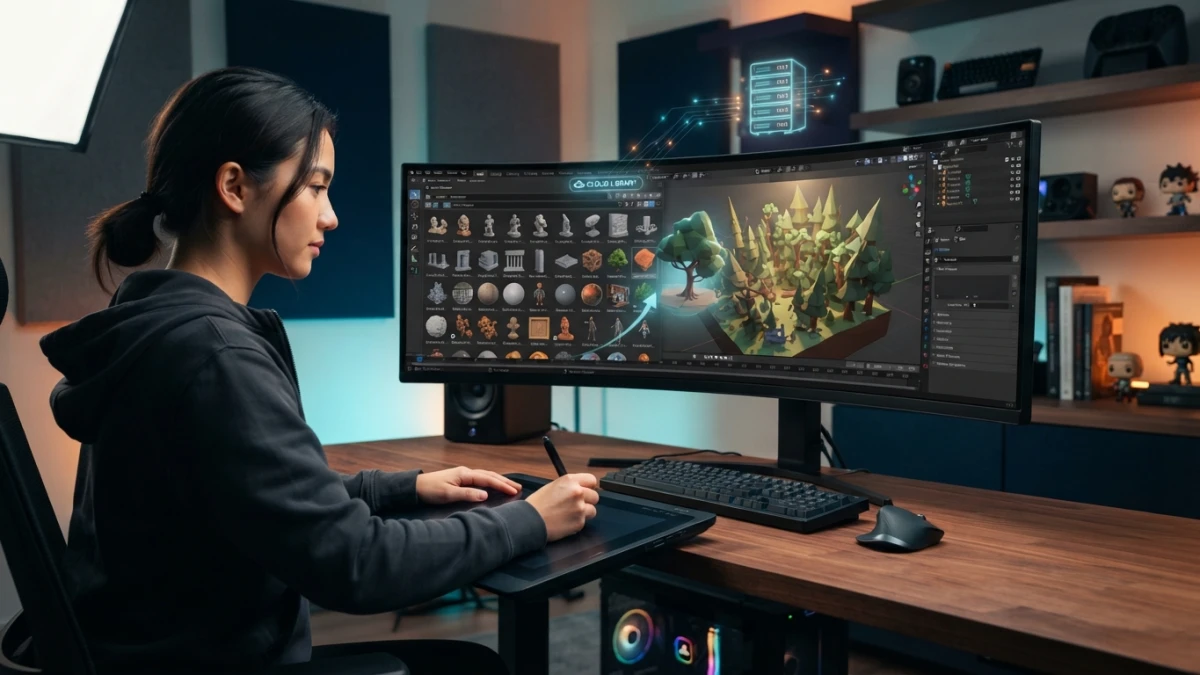
Blender 5.2 LTS shipped on July 14, 2026 and, for the first time, lets you host asset libraries online and download assets on demand from inside the editor. The Asset Browser turns "where did I save that material?" into a drag and drop: you mark an asset once and reuse it in any scene.
What the Asset Browser Is and Why It Makes You Faster
Linked Assets, Not Copies
The Asset Browser is Blender's native editor for organizing and reusing assets. The key difference from keeping loose files is that the asset is linked from the library, not copied into your scene: the original file stays the source, and scenes reflect whatever updates you make to the asset. Fix a material in the library and every project using it gets the change without re-importing anything.
What Can Be Marked as an Asset: Meshes, Materials, Node Groups, Brushes, and Poses
Almost everything reusable in Blender can become an asset: meshes and objects, materials, node groups, paint and sculpt brushes, and poses. HDRIs, textures, and other data blocks you repeat across projects also qualify. The mental rule is simple: if you have rebuilt it more than twice, it is an asset candidate.
Setting Up Your First Library
Preferences > File Paths > Asset Libraries
Libraries are configured in Preferences, under the file paths section. You add folders there and each one becomes a library with its own name. One important detail: Blender does not copy the asset into the library for you; the .blend file with your assets must be saved inside the library folder so the editor recognizes it.
Libraries Per Project and Per Studio
It pays to separate by scope. A personal library with the materials and node groups you use across all your projects, a per-client or per-franchise library if you work on several, and a shared library if you are part of a studio. Each one with its own folder and a clear name keeps the Asset Browser from becoming a messy drawer.
The All Catalog and How Libraries Combine
Since Blender 3.5, the default view is the All catalog, which concatenates every available library. That means you can see and drop assets from several libraries without switching context, and it makes the order and names of your catalogs matter: they are what make an asset findable among hundreds.
Marking and Organizing Assets
Mark as Asset and Getting the Name Right
To turn an object or material into an asset, select it, right-click, and choose Mark as Asset. At that moment you give it a clear, descriptive name, because that text is what you will see in searches. A name like "dark_scratched_metal" performs much better than "Material.001". Then save the file inside the library folder and you are done.
Catalogs to Build Hierarchies
Catalogs organize assets into hierarchies within a library. You can create folders like "Materials/Metal", "Meshes/Props", or "HDRIs/Nature" and drag each asset into place. A well-thought-out hierarchy makes browsing instant, even as the library grows over time.
Tags and Quick Search
Tags complement catalogs: labels like "pbr", "low-poly", "wood", or "fantasy" let you filter across the board, no matter which folder each asset lives in. A correct catalog plus two or three good tags is what separates a usable library from one nobody wants to open.
Using Assets: Drag and Drop into the Scene
Applying Materials and Node Groups
Usage is direct: drag the material from the Asset Browser onto an object in the viewport and it applies instantly, creating a new instance with its images and node groups linked. If you edit the original material, scenes using it update; if you prefer an independent version, you can make it single-user in the scene and edit without touching the library.
Mesh Instances and Poses
Meshes drop as instances, not duplicated copies: the scene stays light and the original file remains the source. Poses work the same way: save a pose as an asset, drag it onto a character, and apply it to the rig. That is especially useful in animation, where reusing base poses speeds up scene blocking.
Blender 5.2's Big New Thing: Remote Asset Libraries
Hosting the Library Online and Browsing It from Blender
The headline feature of the 5.2 LTS is support for hosting asset libraries online. You configure the remote library like any other, and from the Asset Browser you browse its contents as if it were local. The difference is that the files do not live on your disk but on a server, and the editor shows them in the usual interface.
On-Demand Downloads: Assets Only Come Down When You Use Them
On-demand downloading is what makes a large library viable: Blender shows the full catalog, but only downloads an asset when you actually drag it into the scene. You do not need to sync gigabytes on every machine; content arrives when used, and the rest stays online.
Sharing Libraries Across a Team
For a small studio, this solves the shared-library problem: everyone sees the same catalog, everyone uses the same materials and props, and nobody has to copy files over the network or maintain local versions. The remote library is the natural evolution of the shared folder, with the advantage that the editor manages it natively.
Add-ons and Free Asset Sources
Poly Haven Integrated into the Asset Browser
Poly Haven, the project that unified HDRI Haven, Texture Haven, and 3D Model Haven, publishes an official add-on that integrates its assets directly into the Asset Browser. With it installed, you browse its HDRIs, textures, and models without leaving Blender. It is one of the fastest ways to start working with quality assets without investing in paid libraries.
Community Libraries and Marketplaces
Beyond Poly Haven, there are community libraries and asset marketplaces publishing packs designed for the Asset Browser. Before downloading, check that the pack includes a catalog structure and not just loose files: a well-organized library integrates in minutes, while a pile of unorganized .blend files forces you to sort everything by hand.
Best Practices: Naming, Catalogs, and Governance
The part nobody plans is governance: who adds assets, with what names, into which catalogs, and what happens when duplicate versions appear. Define a naming convention from day one (for example, type_material_finish), a responsible owner for the shared library, and a review rule before marking something as an asset. A library with good names, coherent catalogs, and a cleanup criterion grows without turning into a messy drawer; without those rules, you end up with five versions of "metal" and nobody knows which to use.
Conclusion
The Asset Browser turns reuse into a single gesture: mark once, organize with catalogs and tags, and drop into any scene. With Blender 5.2, remote libraries add the missing piece for teams and large libraries: online content, on-demand downloads, and a single source of truth. To squeeze more out of your workflow, check the best Blender 5.2 add-ons or how to build reusable procedural materials. Set up your library, keep it organized, and stop rebuilding what you already made.