Laravel 13 Two-Factor Authentication: TOTP 2FA with Google Authenticator

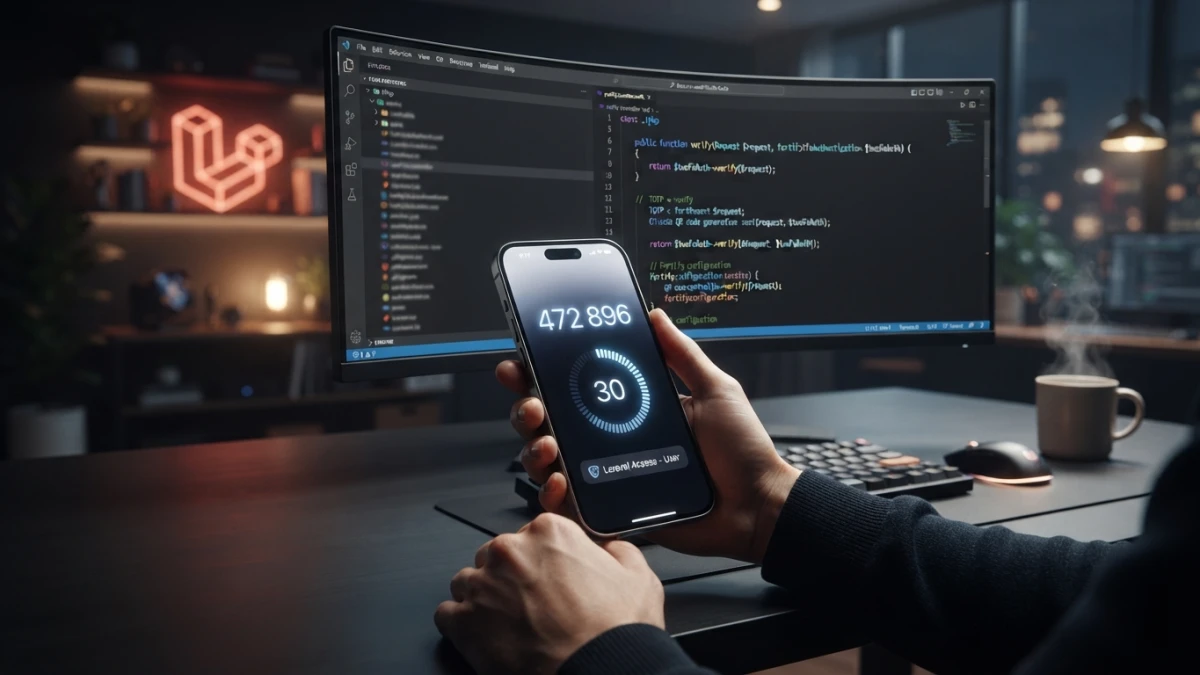
A 6-digit TOTP code that expires every 30 seconds turns a stolen password into a dead end. In Laravel 13 you can add two-factor authentication to an existing login with one package and a migration, or enable it out of the box with Fortify; this guide covers both paths.
What TOTP Two-Factor Authentication Is and Why You Need It
A password alone is no longer enough. If an admin panel or a client area leaks credentials —through phishing, password reuse, or a breach in another service— the attacker walks straight in. TOTP 2FA cuts that problem short: even if someone steals the password, they still need the temporary code generated by the user's app.
The RFC 6238 Standard: 6-Digit Codes That Expire Every 30 Seconds
TOTP (RFC 6238) derives from HOTP (RFC 4226): with a shared secret and the current time it generates a 6-digit code valid for 30 seconds. The server and the app compute the same code, so no connection or SMS is needed: just synchronized clocks. Enrollment shares the secret in a QR code with an otpauth:// URL that apps like Google Authenticator or Authy scan to generate codes offline.
Two Paths to 2FA in Laravel 13
Option A: A Package on Top of Your Current Login (pragmarx/google2fa-laravel)
If your app already has a password and session login of its own —with roles, an admin panel, whatever you need— the most surgical path is adding the second factor with pragmarx/google2fa-laravel, the Laravel integration of the Google2FA PHP package. You do not rewrite authentication: you store a secret per user, show a QR code, and check the code after the password.
Option B: Fortify and Jetstream with Built-In 2FA
Laravel Fortify ships first-party TOTP 2FA: encrypted columns on the User model, enable, QR, confirm, and recovery code endpoints, and a challenge view at login. Jetstream, the starter kit built on Fortify, adds the ready-made UI. If you start from a starter kit or accept its structure, that is the least you have to maintain.
How to Choose Based on Your Project
The practical rule: a consolidated custom login calls for Option A; a new project or one willing to adopt the Fortify/Jetstream structure calls for Option B. Both produce the same result: TOTP 2FA compatible with the usual apps. This guide builds Option A step by step and then shows what Option B offers.
Installing and Preparing the Second Factor
composer require pragmarx/google2fa-laravel
composer require pragmarx/google2fa-laravelThe package registers itself through service provider auto-discovery. To render the enrollment QR code you also need a generator library, for example bacon/bacon-qr-code; the dependency-free alternative is showing the secret as text so the user can type it into the app.
Migration: the google2fa_secret Column on Your Users Table
Schema::table('users', function (Blueprint $table) {
    $table->string('google2fa_secret')->nullable()->after('password');
});
The secret is stored per user; in production, encrypt it before persisting. A nullable column lets users without 2FA keep logging in normally.
Generating the Secret with Google2FA::generateSecretKey()
use PragmaRX\Google2FA\Google2FA;

$google2fa = new Google2FA();
$secret = $google2fa->generateSecretKey();
That 32-character base32 secret is the shared seed: you give it to the user once during enrollment, ideally via QR, and from then on the app and your server compute the same codes. Never show it again or send it over insecure channels.
Enrollment: QR Code and First-Code Confirmation
Building the otpauth:// URL and Rendering the QR Code
$url = $google2fa->getQRCodeUrl('MyApp', $user->email, $secret);
// otpauth://totp/MyApp:user@email.com?secret=...&issuer=MyApp
With the otpauth:// URL you generate the QR code and render it in an enrollment view with clear steps: a large QR and the secret hidden until confirmation. The issuer must match the name shown by the user's app so they recognize the account.
Confirm a Code Before Enabling: Don't Lock Users Out
The classic mistake is enabling 2FA as soon as the QR code is generated: if the user scans it wrong, they are locked out of their own account. Real activation happens only when they submit a valid code generated by their app; that first code proves the secret was stored correctly.
The Verification Form in Your Panel
The form asks for the 6-digit code; when it confirms, you save the secret and mark 2FA as active. If the code does not verify, you save nothing and show an error. That way a user can never enable a secret they do not actually hold in their app.
Requiring the Code at Login
Detecting Users with 2FA Enabled After the Password Step
After validating the password, check whether the user has 2FA enabled. If not, continue with the normal session; if yes, do not open the session yet: keep the user half-authenticated (with a pending_2fa flag in the session) and redirect to the challenge screen.
The Challenge Screen and Verification with Google2FA::verifyKey()
if (! $google2fa->verifyKey($user->google2fa_secret, $request->code)) {
    return back()->withErrors(['code' => 'The code is not valid.']);
}
// valid code: complete the login and clear the pending flag
The challenge screen is a minimal form with the code field. Once verified, you complete the login: regenerate the session and clear the pending state. Require the code on every fresh login and do not store it in the session permanently.
Clock Drift Tolerance (Window) When Verifying
The phone clock can drift a few seconds and make a valid code arrive late. verifyKey() accepts a third window parameter: with window = 1 you also accept the code before and after the current window, enough to absorb normal drift without opening the door to old codes.
Recovery Codes: Your Safety Net for a Lost Phone
Generating Single-Use Codes and Storing Them Hashed
If the user loses the phone, without recovery codes they are locked out. When 2FA is enabled, generate 6 to 10 single-use codes, show them once, and persist them hashed, never in plain text. Each used code is invalidated.
Disabling 2FA from the Panel
Disabling requires its own verification: ask for the current code or a recovery code before deleting the secret, so an attacker with an open session cannot turn off the protection. After disabling, clear the column.
The First-Party Alternative: Fortify and Jetstream
Encrypted two_factor_secret and two_factor_recovery_codes Columns
Fortify includes TOTP 2FA under the hood (it uses Google2FA) and encrypts for you: it adds the two_factor_secret and two_factor_recovery_codes fields to the User model, encrypted. Just publish its migrations and add the traits to your model.
Enable, QR, Confirm, and Recovery Code Endpoints
Fortify exposes the routes: /user/two-factor-authentication to enable or disable, /user/two-factor-qr-code for the QR, confirmation with the first code, and /user/two-factor-recovery-codes for backups. Enrollment also requires confirming a code before enabling.
The two-factor-challenge View and SPA Mode with JSON Responses
When a user with 2FA enabled logs in, Fortify redirects to two-factor-challenge to ask for the code or a recovery code. In SPA mode those routes respond with JSON, so a Vue or React frontend handles it without reloading. To require it only for admins, condition the challenge based on the role.
Jetstream: Ready-Made UI If You Start from a Starter Kit
Jetstream, built on Fortify, ships the profile security page with enrollment, QR, recovery codes, and devices. If you accept its structure, 2FA arrives with almost no custom code; with a custom login, Option A is cleaner.
Testing the Flow with Pest
Testing Login Without 2FA and with a Pending Code
A Pest test verifies that a user without 2FA logs in normally and that one with 2FA enabled who submits only the password does not complete the login. That pair covers the key regression: not breaking the login and not letting in someone who must provide the second factor.
Testing Enrollment, Wrong Codes, and Recovery Codes
Enrollment tests verify that enabling without a valid code does not save the secret, that a correct code enables 2FA, and that the login rejects a wrong one; the expected TOTP is computed in the test with the same library. A recovery code test confirms that an unused backup completes the login and is invalidated.
Conclusion
Adding 2FA to a Laravel 13 app with a custom login is a contained change: a secret per user, a QR enrollment with confirmation, a check after the password, and recovery codes. If you would rather not maintain that logic, Fortify and Jetstream ship it solved. With the second factor active, a leaked password is no longer enough to get in. For more, this blog also has guides on passkeys, API tokens, and policy-based authorization.