How to Install Apps in Developer Mode on Samsung TVs (2020 Series / Tizen 5.5)

Installing your own application on a Samsung TV looks like a five-minute job — until Developer Mode answers with a cryptic "Parsing error". After hours of trial and error with a 2020-series TV (Tizen 5.5), here is the complete guide that would have saved me the whole day: the 12345 method, the right certificates, and the install command that actually registers the app.
What you need before you start
This recipe works with any 2019–2020 Samsung TV (Tizen 4.0–5.5) and is the foundation for newer models. It assumes a PC with Tizen Studio installed, but the concepts (certificates, config.xml, commands) apply the same on Linux, macOS and Windows.
- A Samsung TV with accessible Developer Mode (this guide uses a 2020 series / Tizen 5.5 unit).
- Tizen Studio on your PC:
~/tizen-studioon Linux/macOS,C:\tizen-studioon Windows. The CLI must be 2.5.25 or newer (check withtizen version). - The TV and the PC on the same local network.
- Your app package: a
.wgtfile withconfig.xmlat its root.
Enabling Developer Mode
Here is the first trap: on 2019–2020 series there is no "Samsung Developer Mode" app in the store. Access goes through a hidden method.
The 12345 method (2019–2020 series)
- On the TV, open the Apps panel.
- Type 12345 with the remote (a search/numeric keypad appears).
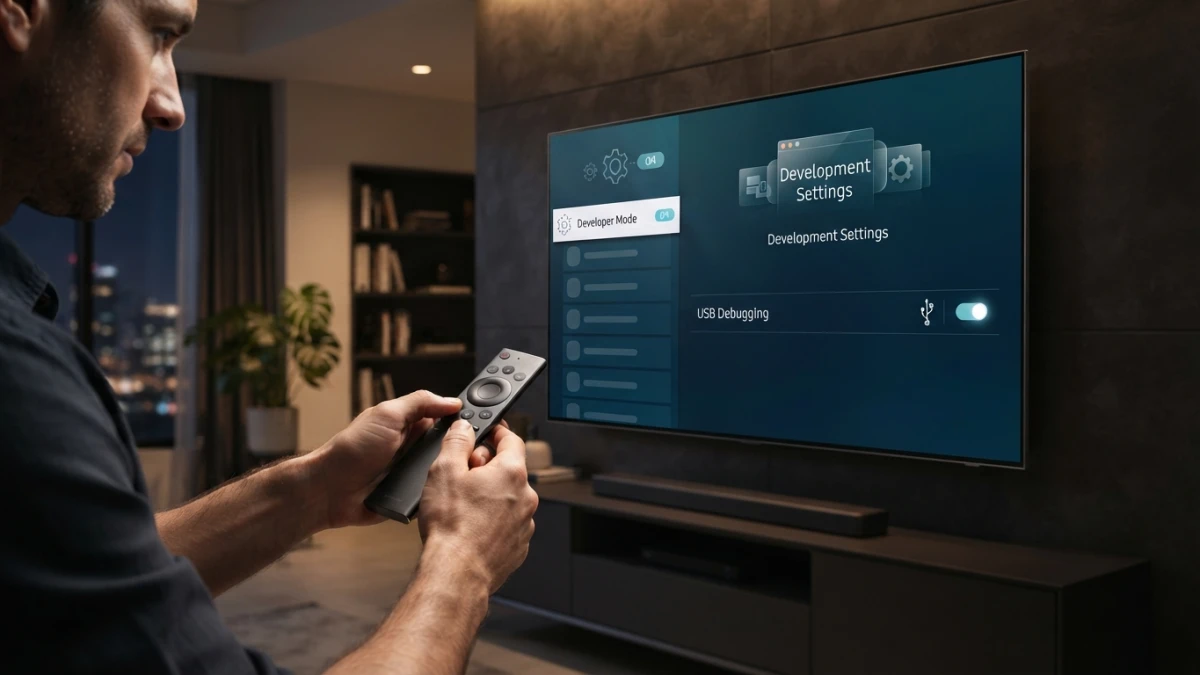
- The Developer Mode screen opens: set Developer mode: ON and enter the Host PC IP (the LAN IP of the PC you will install from).
- Save. The TV reboots and stays in dev mode (you will see the "Apps (DEVELOP MODE)" badge).
2021 and newer models
On newer TVs you install the "Samsung Developer Mode" app from the app store (it usually asks you to sign in with a Samsung account). The rest of the flow is identical.
Port 26101 quirks (sdb)
Three details that look like failures but are normal Developer Mode behavior:
- The port only listens while the Developer Mode screen is open on the TV. Close it or let the screensaver kick in and connections fail. Keep it open during the install.
- The TV rejects connections from any IP other than the registered one: the port accepts the TCP handshake and resets as soon as data arrives. If your IP changes (DHCP), re-enter Developer Mode and update the host.
- If Developer Mode misbehaves, unplug the TV for 60 seconds. Powering off with the remote is only standby and does not clear the system processes.
Certificates: the part nobody explains
The TV rejects the default signing profile of Tizen Studio. That profile signs with an "emulator" certificate and the TV refuses it during signature validation. The fix is to create your own author certificate and sign with the public distributor shipped with the SDK.
Creating the author certificate
The detail that is hard to find: the certificate alias IS the author-id that the TV requires in the app name. Keep it short and stable.
tizen certificate -a myalias -p YOUR_PASSWORD -c CL -s Region -ct City \
    -o YourCompany -u Dev -n YourName -e you@email.com -f myalias
It is generated in ~/tizen-studio-data/keystore/author/myalias.p12.
Creating the signing profile with the public distributor
SDKDIST=~/tizen-studio/tools/certificate-generator/certificates/distributor/sdk-public
tizen security-profiles add -n MyProfile \
    -a ~/tizen-studio-data/keystore/author/myalias.p12 -p YOUR_PASSWORD \
    -c "$SDKDIST/tizen-distributor-ca.cer" \
    -d "$SDKDIST/tizen-distributor-signer.p12" \
    -dp tizenpkcs12passfordsigner
tizen security-profiles set-active -n MyProfile
tizen cli-config "profiles.path=$HOME/tizen-studio-data/profile/profiles.xml"
The public distributor password (tizenpkcs12passfordsigner) is fixed in the SDK; the emulator certificate (tizen-distributor-signer.p12 in the distributor/ folder) is the one the TV rejects.
config.xml: what the TV actually validates
A config.xml that Tizen Studio accepts without complaint can still be rejected by the TV. These are the verified rules:
The author-id in the app name
The id must start with your author-id, and the package attribute must be exactly the author-id:
<tizen:application id="myalias.myapp" package="myalias" required_version="4.0"/>If they do not match, the TV answers Author certificate not match.
app-control and tizen:setting
The tizen:app-control block only accepts operations valid for TV; the one that works in practice is Samsung's resume operation:
<tizen:app-control>
    <tizen:src name="index.html" reload="disable"/>
    <tizen:operation name="http://samsung.com/appcontrol/operation/eden_resume"/>
</tizen:app-control>
And tizen:setting only supports the schema attributes (screen-orientation, context-menu, background-support, encryption, install-location, hwkey-event). Any made-up attribute produces the dreaded "Parsing error" at install time.
Also, <tizen:launch_screen enabled="true"/> without an associated image can prevent the app from starting ("Espere un momento y reintente" / "Please wait a moment and try again"); if that happens, remove the element.
Install and launch: tizen install, not sdb install
This is the most expensive mistake of all. sdb install pushes the .wgt to the TV but does NOT register the application: the command finishes "successfully" and the app is nowhere to be found. The real installer for TV web apps is invoked through the Tizen CLI:
# 1) Connect via sdb (with the Developer Mode screen open)
sdb connect 192.168.1.50:26101

# 2) Actually install (via wascmd/vd_appinstall)
tizen install -n myapp.wgt -s 192.168.1.50:26101
# → "Tizen application is successfully installed."

# 3) Launch
tizen run -p myalias.myapp -s 192.168.1.50:26101
Watch out for the build directory too: if the -out build output ends up nested inside a copy of the project, the package includes unsigned files and the TV answers An unsigned file was found. Always build into a clean directory outside the app tree.
Common errors and their real causes
| Message | Cause |
|---|---|
install failed[118, -19] Parsing error | Signed with the emulator certificate, or an invalid element in config.xml (app-control, tizen:setting). |
install failed[118, -11] Author certificate not match | The package or the id prefix is not your author-id (the certificate alias). |
install failed[118, -12] An unsigned file was found | The build directory ended up nested inside the app and files ended up outside the signature. |
sdb install "succeeds" but the app never appears | sdb install does not register the app; use tizen install. |
NoClassDefFoundError: org/eclipse/core/runtime/Plugin | Old Tizen CLI (below 2.5.25): update the SDK's bin, conf-ncli and lib-ncli directories. |
Conclusion
Installing an app on a Samsung TV in Developer Mode boils down to three rules that are expensive to discover: on 2020-series TVs dev mode is enabled with 12345 and requires your PC's IP; the signature must use the public distributor with the author-id as the app name; and the real install is done with tizen install, not sdb install. With those three points, your app is on the TV in minutes.